

You've got a Google Form ready, a flyer going to print, and about ten minutes before someone asks for the QR code file. That's the usual moment this task shows up. The mechanics are simple enough, but the part that causes trouble later isn't generating the code. It's whether people can scan it, open the form on a phone, and finish it without friction.
If you're trying to create a qr code for a google form, the fastest path is also the most common one. Copy the form's share link, paste it into a QR generator, and export the image. That basic workflow works well because the QR code is only a scannable version of the form URL, which makes the same form usable across posters, event signage, handouts, and packaging inserts, as outlined in this Google Form QR workflow overview.
Table of Contents
- Why Use a QR Code for Your Google Form
- How to Generate a Basic QR Code for Free
- Static vs Dynamic QR Codes Which Should You Use
- QR Code Best Practices for Maximum Scans
- Advanced QR Code Tips for Better Data
- Beyond Google Forms Improve Tracking and Conversions
Why Use a QR Code for Your Google Form
A QR code solves a very specific operations problem. You want someone standing in a physical space to complete a digital form without typing a long URL into their phone. That could be a customer leaving feedback at checkout, a student checking in to class, or an event attendee scanning a sign near the exit.
The useful part isn't the code itself. It's the bridge between offline attention and online submission. A printed touchpoint becomes interactive the moment the form link is scannable.
For teams running product tastings, in-store surveys, or table-side feedback, this matters because it shortens the path from intent to action. A setup like the Blind Barrels QR code system is a good example of how QR can connect a physical experience to a digital response path without asking users to do extra work first.
Where QR-linked forms work well
- Events and trade shows: Put the form on booth signage, badges, or tabletop displays so visitors can register or request follow-up on the spot.
- Education and training: Use handouts or classroom slides for attendance, quiz access, or session feedback.
- Retail and hospitality: Add a code to packaging inserts, receipts, menus, or counters when you need immediate customer input.
- Internal operations: Use posters in offices, warehouses, or break rooms for fast employee pulse checks.
Practical rule: If the form starts from a physical object, a QR code usually beats asking people to type a link.
The QR code only gets the visitor to the door, though. If the form is confusing, too long, or awkward on mobile, completion still drops. That's why the form itself needs the same level of care as the distribution method. For a strong starting point, review these survey design best practices before you publish the form and turn it into a code.
How to Generate a Basic QR Code for Free
The quickest reliable workflow is straightforward. Open your form, copy the shareable link, shorten it if that option is available, paste it into a QR generator, and download the image. That's a commonly used method because it's fast and doesn't require changing anything inside Google Forms itself.
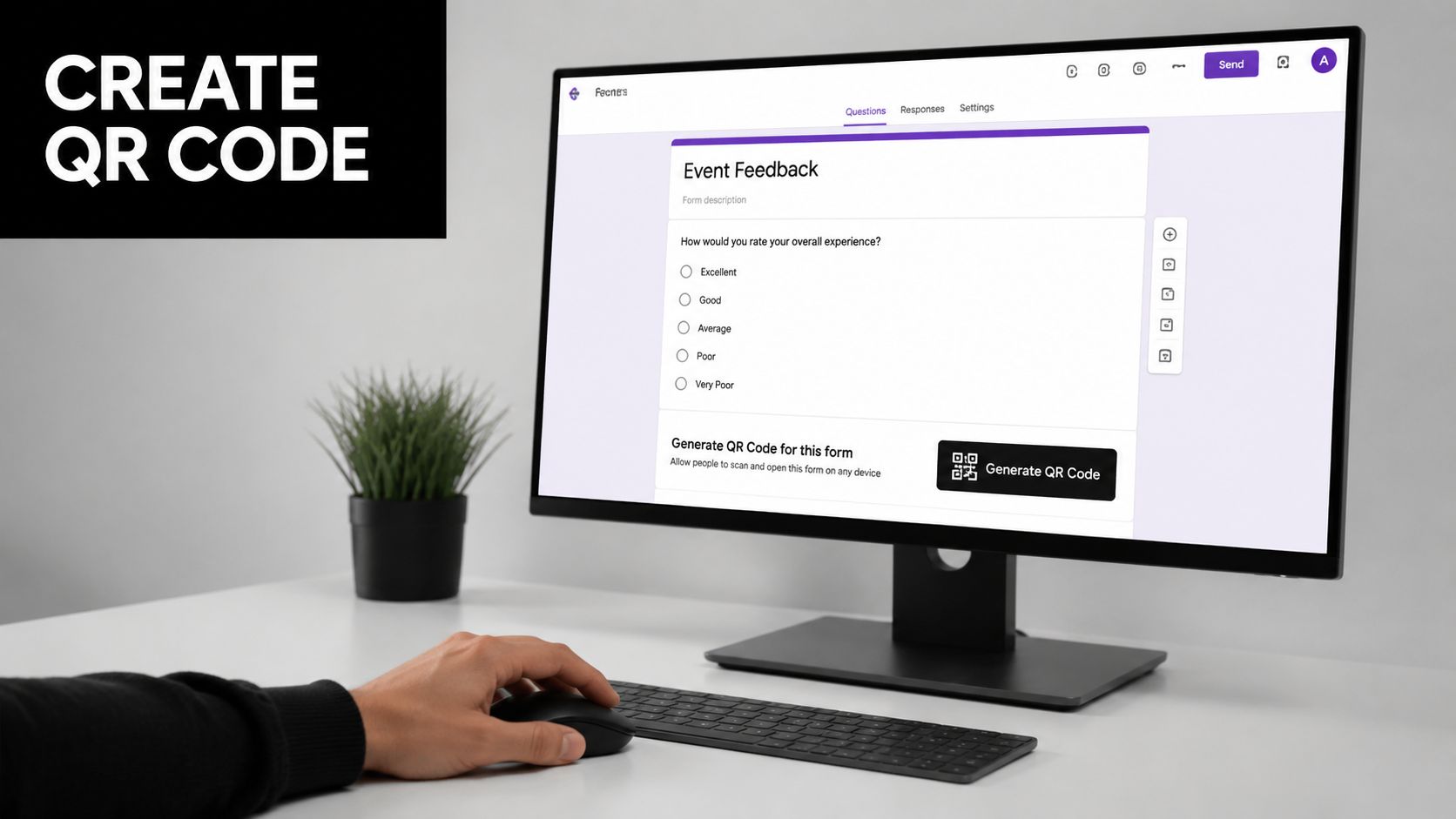
Start with the right Google Forms link
Inside Google Forms, open the form you want to share. Click the Send button, choose the link option, and copy the share URL. If Google Forms offers Shorten URL, use it.
That last step matters more than most quick tutorials mention. A shorter destination URL typically creates a less complex QR pattern, which can improve scan reliability, especially when the code is printed small, based on this Google Form QR code creation guide from Jotform.
Use a free QR generator
Once you have the link, paste it into a QR generator such as QRCode Monkey, ME-QR, or a Google Workspace Marketplace add-on. Then generate the code and download it in a format that fits the job.
For many groups, the practical export choices are:
- PNG: Good for slides, emails, docs, and quick-use digital assets.
- SVG: Better when a designer may resize the code for print later.
- High-resolution image file: Useful when the code is headed to signage or packaging.
A basic free workflow looks like this:
- Open the finished form and confirm the questions are final enough to publish.
- Click Send and copy the link from the link tab, not the edit view.
- Enable shortened URL if it's available.
- Paste the link into your QR tool and generate the code.
- Download the file and test it immediately on a phone before handing it off.
The fastest mistake is copying the wrong Google Forms URL. Always use the share link intended for respondents, not the edit screen or a preview you happened to have open.
A quick walkthrough can help if you want to see the mechanics before doing it live:
Watch the process once before you print anything
Generation takes very little time. Verification is where teams save themselves trouble. After you download the code, scan it from another device, confirm it opens the live form, and make sure the form is accessible to the intended audience.
If respondents outside your organization need access, check the form's sharing settings before you distribute the QR. A perfect code that opens a blocked form is still a failed deployment.
Static vs Dynamic QR Codes Which Should You Use
This is the first strategic decision that matters after creation. Both options can send people to a Google Form, but they behave differently once the code is already printed or published.
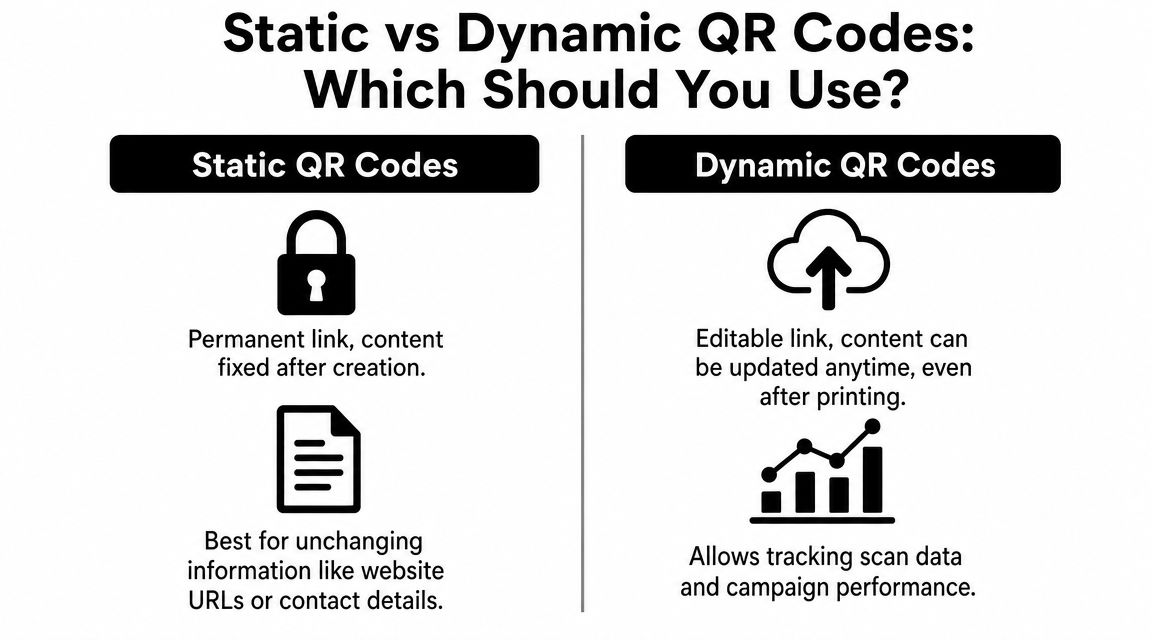
A static QR code points directly to a fixed URL. A dynamic QR code points to a redirect that can usually be changed later inside the QR platform. That difference affects how much flexibility you have after launch.
What changes after printing
If your Google Form URL will stay the same for the life of the campaign, a static code is usually enough. It's simple, often free, and fine for short-lived use cases like classroom attendance, one-off event surveys, or temporary signage.
If the destination might change, dynamic is safer. That includes campaigns where the form could be replaced, access could shift, or you want the option to redirect users somewhere else later.
| Feature | Static QR Code | Dynamic QR Code |
|---|---|---|
| Destination | Fixed after creation | Can usually be updated later |
| Best use | Short-term or stable links | Long-term or changeable campaigns |
| Flexibility | Low | Higher |
| Typical setup | Often simpler and free | Often tied to a platform or service |
| Analytics | Limited or none in basic tools | Often available in supporting tools |
How to choose for real campaigns
Use this decision filter:
- Choose static when the form link is stable, the campaign is short, and you just need a scannable asset fast.
- Choose dynamic when printed materials will stay in the field for a while or when multiple teams may update the destination later.
- Avoid overengineering if this is a one-day event and no one needs scan reporting.
- Avoid static if reprinting would be painful and expensive in time, logistics, or coordination.
One operational principle is worth keeping in mind. QR codes are best treated as a distribution layer, while the form remains the live destination. If the URL doesn't change, you usually update the form itself instead of regenerating the code. That same guidance also warns that branding choices like oversized logos or low-contrast styling can hurt scan reliability, as noted in ME-QR's practical guidance for Google Form QR codes.
If the campaign has a long shelf life, flexibility matters more than saving a minute during setup.
QR Code Best Practices for Maximum Scans
Most QR failures don't start in the generator. They start in design review, printing, or placement. A code can be technically valid and still perform poorly once it's reduced, stylized, laminated, placed behind glare, or squeezed into a crowded layout.
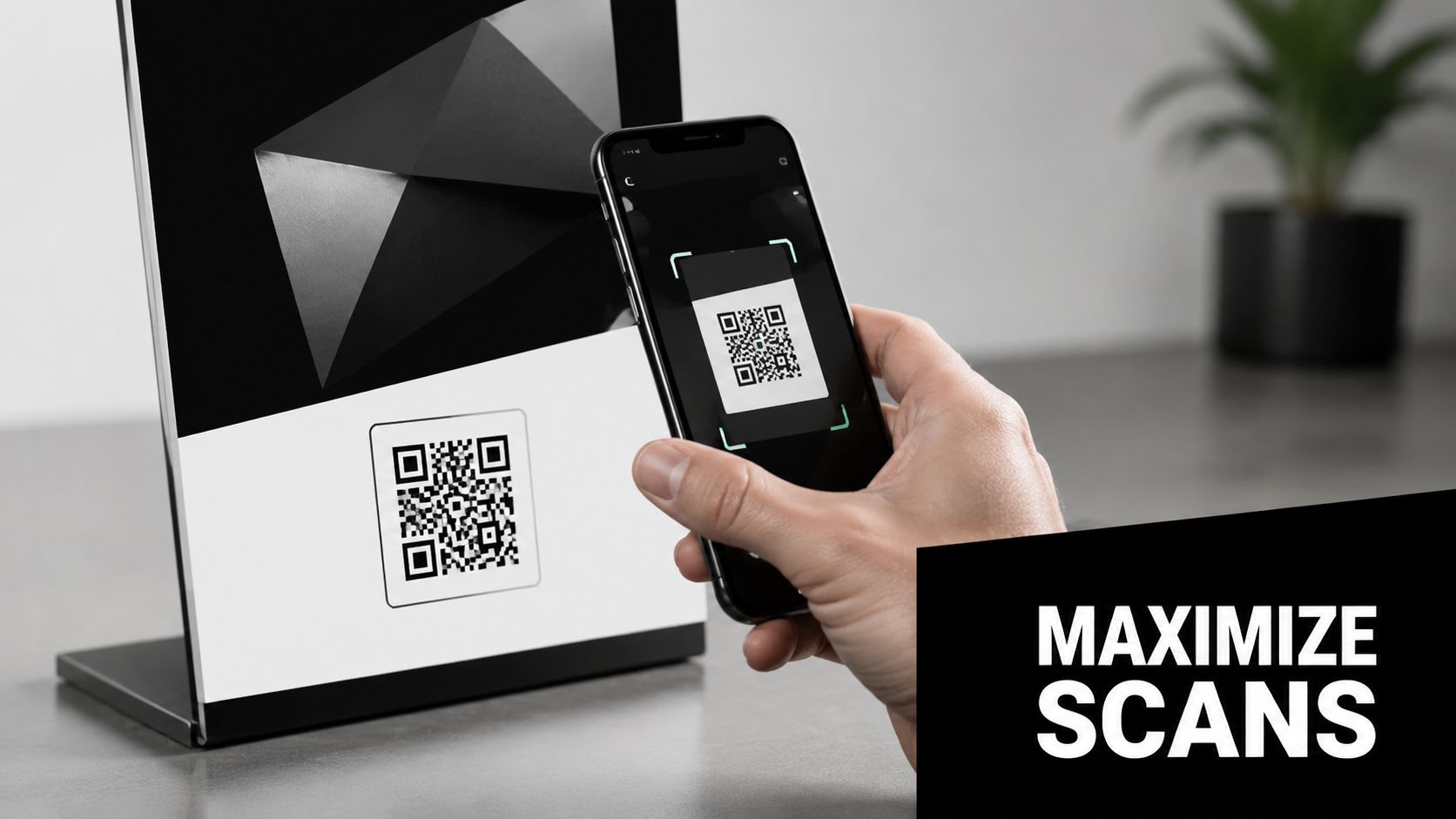
Guidance on QR usability consistently points to the same operational checks: test scan distance, size, contrast, quiet zone, and placement before printing. Those details are what make a code scannable in the field, not just valid on your laptop, according to QR Code Generator's guidance on Google Form QR usage.
Design for scanning not decoration
Branding is fine until it interferes with usability. The safest QR codes are still dark on a light background with enough empty space around the edges.
What tends to work:
- High contrast: Black or very dark code elements on a white or very light background scan most consistently.
- Preserved quiet zone: Leave a clean border around the code so camera apps can isolate it properly.
- Moderate customization: Small visual adjustments are usually safer than heavy styling.
- Clean export quality: Don't drop a low-resolution screenshot of a QR code into a print file.
What often causes trouble:
- Light colors on light backgrounds: These look polished in a mockup and fail in real lighting.
- Oversized logos: A big center mark can block too much of the code.
- Busy layouts: When the QR sits inside clutter, people don't know where to point the camera.
- Curved or reflective surfaces: Bottles, glossy table tents, and windows introduce scanning friction fast.
Field note: A pretty QR code that scans inconsistently is worse than a plain one that works every time.
Placement matters more than most teams expect
Where the code lives changes how people approach it. A poster in a hallway gets scanned at standing distance. A business card gets scanned close-up. A checkout counter display competes with movement, glare, and awkward angles.
Use common sense before finalizing placement:
- Eye-level signage is easier to notice and scan than codes placed too low or too high.
- Flat surfaces beat curved packaging when the scan needs to happen quickly.
- Good lighting helps. Shadow, reflections, and backlit glass don't.
- One clear call to action near the code removes hesitation. Tell people exactly what happens after the scan.
If you're improving the destination too, these form design best practices are worth applying before the code goes to print.
Test the full path not just the code
Teams often stop testing once the phone camera recognizes the QR. That's only the first checkpoint. You still need to confirm the form loads fast, fits the screen, and feels easy to complete on a phone.
Run a basic acceptance test before launch:
- Scan on multiple phones if you can, not just your own device.
- Test from realistic distance based on where the code will be placed.
- Check the mobile form experience from first load through submission.
- Print one sample first before committing to a wider run.
- Test under the actual lighting conditions of the venue, store, classroom, or booth.
A QR campaign succeeds when the user completes the form, not when the code merely opens.
Advanced QR Code Tips for Better Data
The most useful advanced move in Google Forms isn't design customization. It's using a pre-filled link before you generate the QR code. That shifts the QR from generic access into a more structured workflow.
Google Forms includes a Get pre-filled link option. You can create the form, open that option from the three-dot menu, enter sample values into the fields you want pre-populated, click Get Link, and then convert that resulting URL into a QR code. FormsWrite describes that as a practical pattern for personalized or auto-filled use cases in its guide to pre-filled Google Form QR workflows.
Use pre-filled links for context
This approach is useful when you already know part of the submission context and want to reduce user effort.
Examples that work well:
- Attendance tracking: Pre-fill a class, session, or location field before people scan.
- Event check-in: Create a code tied to a specific registration flow, booth, or room.
- Store feedback: Pre-fill a location ID so responses arrive segmented without asking the customer to choose the branch manually.
- Internal audits: Assign a QR to a department, asset, or process step so every submission carries the right context.
When this works best
Pre-filled QR codes are best when consistency matters more than flexibility at the respondent level. They help reduce errors because users don't need to enter information you already know. They also make downstream analysis cleaner because each scan path can map to a distinct context.
A standard QR code shares access. A pre-filled QR code can also carry intent.
The practical caution is simple. Test the pre-filled version just as carefully as the standard one. Make sure the right fields are populated, the user can still edit them if needed, and the final form still feels natural on mobile.
Beyond Google Forms Improve Tracking and Conversions
A QR code can solve access, but it doesn't automatically solve completion. In a lot of campaigns, the weak point isn't the scan. It's the form experience after the scan. That's especially true on mobile, where long fields, generic layouts, and limited analytics make optimization harder.
That's why it's worth challenging the default assumption that every QR should send directly to a Google Form. The stronger question is whether the destination is built for conversion. As noted in the Google Workspace Marketplace context around QR code workflows for Google Forms, the actual bottleneck is often the form, not the QR, especially when teams need conditional logic, better analytics, or partial submission tracking.
If you're comparing response collection systems for customer experience programs, something like One Call's feedback system is a useful reference point because it frames feedback capture as an end-to-end experience rather than just a linked form. The same logic applies when reviewing your own funnel. Start with the scan, but inspect the full journey.
For teams that care about drop-off and iteration, these form analytics practices are often more valuable than another round of QR styling tweaks.
If your QR campaigns are getting scans but not enough completions, BuildForm is worth a look. It gives you conversational, adaptive forms, real-time analytics, and partial submission tracking so you can improve the actual destination experience instead of only tweaking the code that sends people there.