

You've probably done some version of this already. A form goes live, responses start coming in, and within a day someone is copying rows into a spreadsheet, fixing date formats, merging duplicate entries, and wondering which tab has the latest version.
That setup works for a handful of submissions. It breaks once multiple people need the data, once campaigns multiply, or once someone edits the raw sheet and inadvertently wrecks a formula. Forms to Google Sheets sounds simple because the connection itself is simple. The hard part is building a pipeline you can trust after the first week.
That's why teams keep coming back to Sheets. It's already where marketers, ops teams, founders, and recruiters work. One recent roundup says Google Sheets reached 1.1 billion users worldwide in 2025, and that 85% of U.S. startups and 61% of small businesses consider it their primary spreadsheet tool, which helps explain why it became a default layer for centralizing form responses, surveys, and lead capture workflows in shared, cloud-based teams (Google Sheets usage statistics roundup). If your process is outgrowing Sheets, especially in education workflows, it's also worth looking at tools that replace spreadsheets for tutors, because some teams don't have a forms problem. They have a system design problem.
Table of Contents
- Why Send Form Data to Google Sheets in the First Place
- Choosing Your Form-to-Sheet Connection Method
- Method 1 The Simple Native Google Forms Link
- Method 2 No-Code Automation with Zapier and Make
- Method 3 Full Control with Webhooks and Apps Script
- Best Practices for a Clean and Usable Dataset
- Troubleshooting and Frequently Asked Questions
Why Send Form Data to Google Sheets in the First Place
Manual transfer is the first bottleneck many organizations hit. Someone exports CSVs, another person reformats columns, and by the time the data is clean enough to use, the campaign has already moved on. Sending submissions directly into Google Sheets removes that lag.
What makes the workflow stick isn't just convenience. It's that Sheets behaves like a lightweight collaborative data layer. Multiple people can review the same live dataset, sort responses, flag outliers, and build summaries without passing files around or guessing which version is current.
What teams actually gain
A good form-to-sheet setup gives you a few practical advantages right away:
- Immediate visibility: Sales, marketing, ops, or research teams can see submissions as they arrive.
- Shared access: You don't need to export and re-send files every time someone asks for the latest data.
- Fast filtering: Teams can sort by campaign, status, source, owner, or score within minutes.
- Low-friction reporting: A dashboard tab, pivot table, or chart can sit in the same workbook as the incoming data.
Practical rule: The value of forms to google sheets isn't the sync itself. It's shortening the time between submission and action.
The other reason this workflow is common is organizational reality. Proficiency in Sheets is widespread. That means you can get a pipeline running without waiting on engineering, a data warehouse project, or a new analytics stack.
Where it works and where it starts to strain
For lead capture, internal requests, event registrations, lightweight surveys, and intake workflows, Sheets is usually enough. It's easy to review, easy to share, and flexible enough to support formulas, cleanup tabs, and reporting.
It starts to strain when people expect database behavior from a spreadsheet. If you need strict record relationships, complex deduplication logic, or cross-form joins that have to work perfectly every time, a plain response sheet won't carry that load by itself. That doesn't mean you should avoid Google Sheets. It means you should treat the pipeline like a real system, with raw data, clean data, and rules for how changes happen.
Choosing Your Form-to-Sheet Connection Method
The biggest mistake I see isn't technical. It's choosing a method that doesn't match the workflow. People use the native Google Forms link when they need enrichment. They use Zapier for something that really needs custom logic. Or they write code when a simple built-in connection would've been enough.
There are three common paths. Each one solves a different class of problem.
Comparison of Form-to-Sheet Connection Methods
| Method | Best For | Setup Time | Flexibility | Cost |
|---|---|---|---|---|
| Native Google Forms link | Simple response collection inside Google Workspace | Fast | Low | Typically low-cost if you already use Google Workspace |
| Zapier or Make | Multi-app workflows, non-Google form builders, field mapping, enrichment | Moderate | Medium to high | Varies by automation volume and plan |
| Webhooks plus Apps Script | Custom validation, restructuring, routing, advanced control | Higher | High | Usually low software cost, higher implementation effort |
How to choose without overbuilding
If you're collecting survey responses or internal submissions and just need rows to land in a sheet, the native route is hard to beat. It's quick, familiar, and stable enough for straightforward use cases.
If you're using a third-party form builder, or if the data needs cleanup before it lands in Sheets, no-code automation is the more practical choice. That's where tools like Zapier and Make earn their place. They let you map fields, transform values, and add logic without maintaining custom code.
For teams comparing options across native integrations, no-code tools, and custom workflows, this overview of form integration approaches is a useful reference point.
The decision criteria that matter most
Don't pick based on what feels “advanced.” Pick based on what has to happen between submission and reporting.
- Choose native Google Forms if the form is already in Google Forms and the destination is a single response sheet.
- Choose Zapier or Make if you need to connect non-Google forms, standardize data, branch actions, or send the same submission to several tools.
- Choose webhooks and Apps Script if your process needs custom validation, conditional routing, payload parsing, or special write logic in Sheets.
Start with the least complex system that still preserves data quality.
A lot of teams also underestimate maintenance. Native links have very little moving parts. Automation platforms add dependencies, task usage, and mapping upkeep. Custom code gives you maximum control, but someone has to own it when fields change, payloads shift, or collaborators alter the workbook structure.
A practical filter
Ask one question before you build anything: Do I only need to capture submissions, or do I need to process them?
If the answer is capture, use the simplest path. If the answer is process, design for cleanup, normalization, and downstream use from day one. That's where forms to google sheets stops being a convenience feature and becomes an actual data pipeline.
Method 1 The Simple Native Google Forms Link
If your form already lives in Google Forms, the built-in connection is the fastest way to start. It doesn't require an automation tool, and it keeps the submission experience separate from the spreadsheet. Respondents never touch the sheet itself.
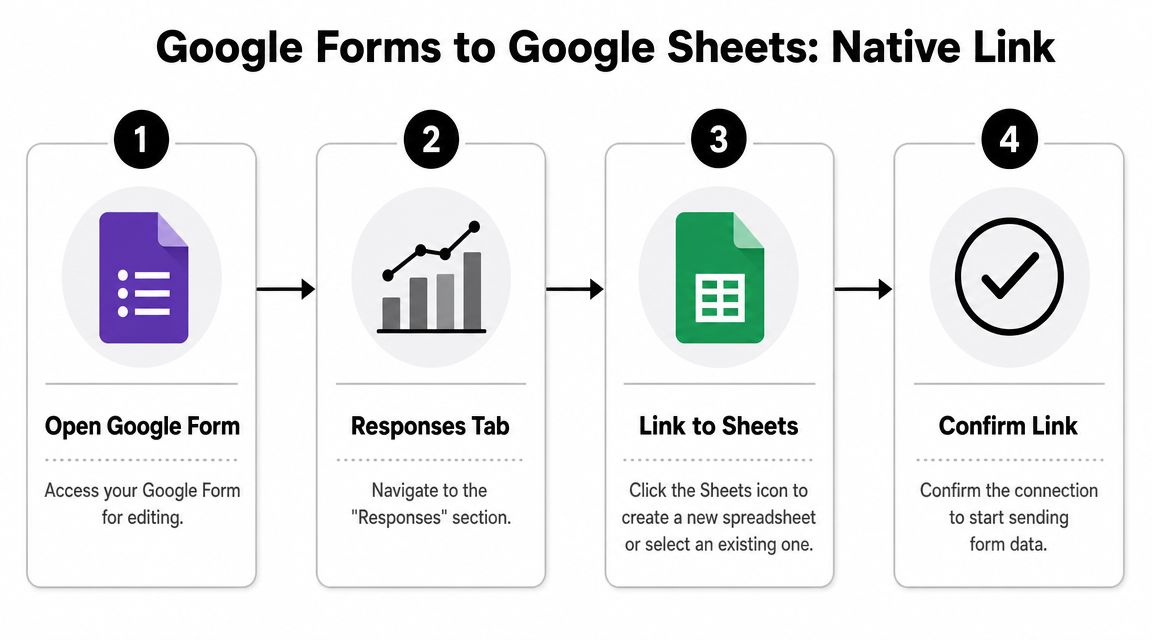
A published walkthrough shows the standard flow clearly: create the form, open the linked response spreadsheet from the form's Responses tab, and let Google write submissions automatically into a dedicated sheet tab for analysis (video walkthrough of the Google Forms response sheet process).
The exact click path
- Open your Google Form in edit mode.
- Click the Responses tab.
- Click the Google Sheets icon.
- Choose whether to create a new spreadsheet or connect to an existing one.
- Confirm the link.
Once connected, each new submission is appended as a new row.
What happens behind the scenes
Google creates a response destination tied to that form. The response tab usually uses the form's structure to define the columns, and each form submission is written as a flat row.
That last part matters. You're not getting a relational model. You're getting a row-based record of each submission. For simple forms, that's perfect. For anything involving multiple related entities, score rollups, or cross-form matching, you'll need another layer in the workbook.
Where the native method works well
This setup is usually enough for:
- Event registrations: one form, one response tab, quick filtering.
- Internal request forms: PTO requests, content requests, bug reports, simple intake flows.
- Basic surveys: especially when the team wants to review results quickly in one shared place.
If distribution is your next step, this guide on creating a QR code for a Google Form can help when you need to turn a form into something usable in offline events, classrooms, or retail spaces.
Keep your first version boring. One form, one destination sheet, one owner, one analysis tab.
Native link limitations you should expect
The native link starts to feel thin when you need more than passive collection.
- No in-transit enrichment: you can't easily transform values before they land.
- Limited branching outside Google: pushing data into other systems needs additional tooling.
- Schema changes can get messy: when forms evolve, your downstream formulas may need attention.
If your process is “submit, review, respond,” this method is excellent. If your process is “submit, clean, score, assign, enrich, notify, and report,” keep reading.
Method 2 No-Code Automation with Zapier and Make
A common scenario looks like this. You have a form in Typeform, Jotform, HubSpot, or another builder. Sales wants every submission in a sheet. Ops wants lead routing. Marketing wants campaign tags cleaned up before anyone reports on them. Native form-to-sheet links usually stop short of that handoff. Zapier and Make fill the gap.

The value here is not just getting submissions into Google Sheets. It is controlling what lands there. A no-code automation can catch the form event, reshape fields, apply rules, and write a cleaner row than the raw payload would produce.
What no-code tools are good at
Zapier and Make work well when the sheet is part of a wider workflow, not just a storage tab.
Typical uses include:
- Field mapping: send each answer to the right column, even when the form structure does not match the sheet.
- Formatting cleanup: standardize dates, split full names, normalize country or state values, and trim inconsistent capitalization.
- Conditional paths: write qualified submissions to one worksheet, send test entries to another, or stop low-quality rows before they hit reporting tabs.
- Multi-step handoffs: add the row in Sheets, alert the team in Slack, and create or update a CRM record from the same submission.
One of the better uses of Sheets is what happens after ingestion. Teams often use formulas to generate prefilled follow-up links, assign owners, or create QA flags. A useful example shows prefilled links and formula-driven operationalization in Sheets. That is the broader point of this method. The sheet becomes an active part of the pipeline, not a passive dump of responses.
A practical setup pattern
A solid baseline flow is simple:
- A form submission triggers the automation.
- The workflow checks for required fields and obvious junk values.
- It reformats fields that are known to cause reporting problems.
- It appends a row to Google Sheets using stable column mappings.
- It runs follow-up actions only after the sheet write succeeds.
That order matters. If notifications or CRM steps run before the row is written, reconciliation gets harder when something fails midway. In production, I usually treat Google Sheets as the logging layer for the submission, then let downstream steps branch from there.
For teams already thinking beyond Sheets, the same design questions show up in CRM API integration patterns for forms and downstream systems. The handoff logic matters as much as the connection itself.
Where teams trip up
No-code tools are fast to launch. They also make it easy to hide bad process design inside a working automation.
These are the failure points I see most often:
- Column drift: someone renames headers, inserts a column in the middle, or changes a tab name, and the mapping breaks unnoticed.
- Inconsistent source values: the form allows free-text answers for fields that should be controlled, so the sheet fills with variations like “US,” “U.S.,” and “United States.”
- Duplicate rows: the workflow appends every event without checking whether a repeat submission should update an existing record.
- Single-workflow sprawl: one automation handles validation, enrichment, routing, notifications, scoring, and syncs. Troubleshooting becomes slow because every failure is buried in the same chain.
The fix is usually boring. Use fixed headers. Add helper columns such as submission_id, source, and processed_at. Normalize high-risk fields before they reach reporting tabs. Keep the ingestion workflow separate from heavy downstream logic when possible.
A short visual example helps if you want to see the trigger-and-action pattern in motion.
When no-code is the right ceiling
No-code is a strong fit when business users need to maintain the workflow, the transformation rules are readable, and occasional schema changes are expected. It is usually the fastest way to get from form submission to usable spreadsheet data without involving a developer.
It starts to strain when you need strict validation, complex branching, nested data handling, or controlled write behavior such as updates, deduplication, and partial rejects. At that point, the sheet is no longer just a destination. It is acting like an endpoint, and that usually calls for code.
Method 3 Full Control with Webhooks and Apps Script
Webhooks and Google Apps Script are for teams that need the sheet to behave less like a passive destination and more like a controlled endpoint. This approach takes longer to set up, but it gives you freedom that native links and no-code tools often can't.

A webhook is just a URL that receives data when an event happens. In this case, the event is a form submission. Instead of sending data straight into a spreadsheet row with fixed mappings, the form sends a payload to your script, and the script decides what to do next.
What this method unlocks
This route is useful when you need to:
- Validate payloads before writing
- Restructure nested or complex input
- Write to different sheets based on conditions
- Create computed fields at ingestion time
- Reject malformed submissions instead of storing bad rows
It also gives you room to support external systems. If the form builder can send webhooks, you can connect it to a Google Sheet without relying on a prebuilt native integration.
For teams already thinking about data moving between forms, spreadsheets, and sales systems, this article on CRM API integration patterns is relevant because the same design questions show up quickly once submissions have to sync across tools.
The basic Apps Script pattern
At a high level, the flow looks like this:
- Create a Google Sheet that will receive data.
- Open Extensions > Apps Script.
- Write a script that accepts incoming POST requests.
- Parse the JSON payload.
- Map fields to the target worksheet.
- Append or route the data according to your rules.
- Deploy the script as a web app and use that URL as the webhook endpoint.
A very simple implementation often starts with a doPost(e) function, parses the inbound data, and writes selected values with appendRow() or a more explicit cell-writing approach.
Why this is better for certain pipelines
A key advantage is control over bad data. You can check for required values, normalize strings, reject blank submissions, add a generated ID, or route incomplete entries to a quarantine tab.
Code is worth it when your business rules matter more than setup speed.
This also lets you separate concerns. The form collects. The script interprets. The sheet stores. That's a cleaner design than overloading one sheet with every transformation.
The trade-off you can't ignore
Custom control means custom responsibility. When the payload changes, the script may need updates. When the target sheet structure changes, the write logic may need updates. Someone has to own testing, permissions, and maintenance.
If you don't have that owner, a no-code pipeline with stricter spreadsheet hygiene is often safer than a half-maintained custom script.
Best Practices for a Clean and Usable Dataset
Most form-to-sheet problems aren't caused by the connection. They're caused by what people do after the data arrives. Someone edits raw responses directly. Someone pastes over formula columns. Someone builds a dashboard on top of inconsistent values and calls the output reporting.
That's why data hygiene isn't optional. A connected form is only useful if the sheet stays trustworthy.
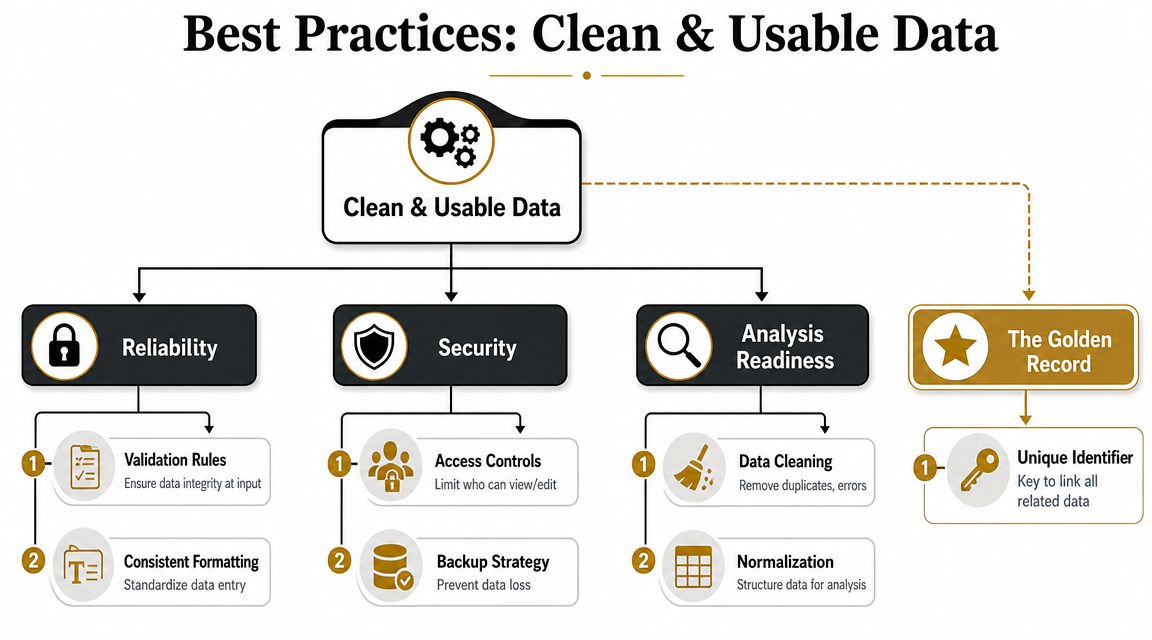
One recurring warning in implementation guidance is that teams should keep the raw response sheet untouched, use a separate Clean Data or analysis tab, and protect formula cells so the workbook preserves an auditable source of truth (guidance on raw-vs-clean separation and sheet safeguards).
The non-negotiable operating rules
If you only adopt a few habits, make them these:
- Never edit the raw response tab: treat it as intake, not workspace.
- Create a clean layer: use a dedicated tab for normalized values, helper columns, and reporting logic.
- Protect formulas and headers: accidental edits are one of the fastest ways to break a live workbook.
- Freeze the top row: basic, but it saves a lot of scrolling mistakes in active sheets.
- Use consistent names: tabs, fields, and statuses should follow one naming pattern.
Your raw response sheet should be boring, stable, and slightly inconvenient to edit. That's a feature.
Why Sheets needs a data model, even a lightweight one
Published academic discussion of Google Sheets describes it as capable of basic statistical procedures, but not as a full analytics engine. In practical terms, that means flat response rows usually need cleanup, normalization, and formula logic before they become reliable reporting inputs, especially when multiple forms feed one workbook and each tab has a different schema (discussion of Sheets limitations for analysis and harmonization).
That's the part many tutorials skip. They show how to connect the form, then stop before the essential steps begin.
A structure that holds up better
A cleaner workbook usually separates data into layers:
| Tab type | Purpose | Editing rule |
|---|---|---|
| Raw Responses | Original submissions exactly as received | Don't edit directly |
| Clean Data | Normalized fields, helper columns, dedupe checks | Limited editing |
| Analysis | Pivot tables, charts, summaries, dashboard logic | Safe for reporting work |
This design is simple, but it solves a lot of headaches. If a formula breaks in Analysis, the raw data is still intact. If a status value needs standardization, do it in Clean Data instead of rewriting history in Raw Responses.
Practical cleanup habits that actually help
A few habits pay off immediately:
- Add a stable identifier: if the form doesn't provide one, generate one in your clean layer.
- Normalize categorical answers: “US”, “U.S.”, and “United States” shouldn't become three categories.
- Separate dates from text fixes: don't mix parsing logic with reporting formulas if you can help it.
- Review duplicates intentionally: don't assume duplicate email means duplicate person, but don't ignore it either.
If you remember one thing, make it this: forms to google sheets works best when the spreadsheet is treated like a governed workspace, not a shared scratchpad.
Troubleshooting and Frequently Asked Questions
Why didn't my new form question show up correctly in Sheets
A new question changes the schema. The form may be writing the new field correctly, but anything built on top of that raw response tab can break if it depends on fixed column positions, exact header names, or an older field map.
Start at the source. Confirm the new column appears in the response sheet, then check formulas, Zap or Make mappings, Apps Script references, and any reporting tabs that pull by column index instead of header.
How should I handle partial submissions
Keep partial submissions out of your main reporting flow unless you have a clear reason to include them. They can be useful for follow-up, abandoned form analysis, or lead recovery, but they distort conversion reporting when they sit beside completed entries with no distinction.
A separate tab works. A completion-status field in your clean layer also works. The right choice depends on how often your team needs to analyze partials versus completed records together.
My team needs access to the data but shouldn't edit the raw sheet. What's the safest setup
Protect the raw response tab and any formula-heavy tabs. Give the broader team access to summaries, filtered views, or reporting tabs instead of the intake layer.
This matters more as the sheet becomes an operating tool, not just a log. One accidental paste into the raw tab can break formulas, overwrite headers, or corrupt the record you need later for debugging.
What if duplicate submissions keep showing up
Plan for duplicates before they become a reporting problem. Add helper columns in the clean layer that flag likely matches using email, phone number, order ID, or another stable identifier.
Then review those flags with context. Duplicate email does not always mean duplicate person, and duplicate rows do not always mean user error. Retries, refreshes, payment issues, and automation misfires can all create valid-looking repeats. Keep the raw records intact and resolve duplicates downstream.
Is Google Sheets enough for long-term storage
For many teams, yes. It is fast to set up, easy to share, and good for operational reporting.
It starts to strain when you need strict data relationships, heavy transformation logic, audit trails, or large-scale historical analysis. At that point, Sheets is usually better as a working layer on top of a more durable system, not the system itself.
If you want a form builder that fits this pipeline approach, BuildForm is one option for creating forms, capturing submissions, and routing data into the rest of your workflow, including spreadsheet-based processes. It fits teams that care about both conversion on the front end and cleaner downstream data once responses land in Sheets.